Eight EF Core Mistakes That Kill Performance and Scalability
Many .NET developers write EF Core queries that function, but few optimize them for scale. This guide dissects eight common pitfalls, from loading excessive data to ignoring generated SQL, offering practical solutions to drastically improve your application's database performance.
Author
AmethiSoft AI TeamPublished
March 19, 2026Read Time
12 min read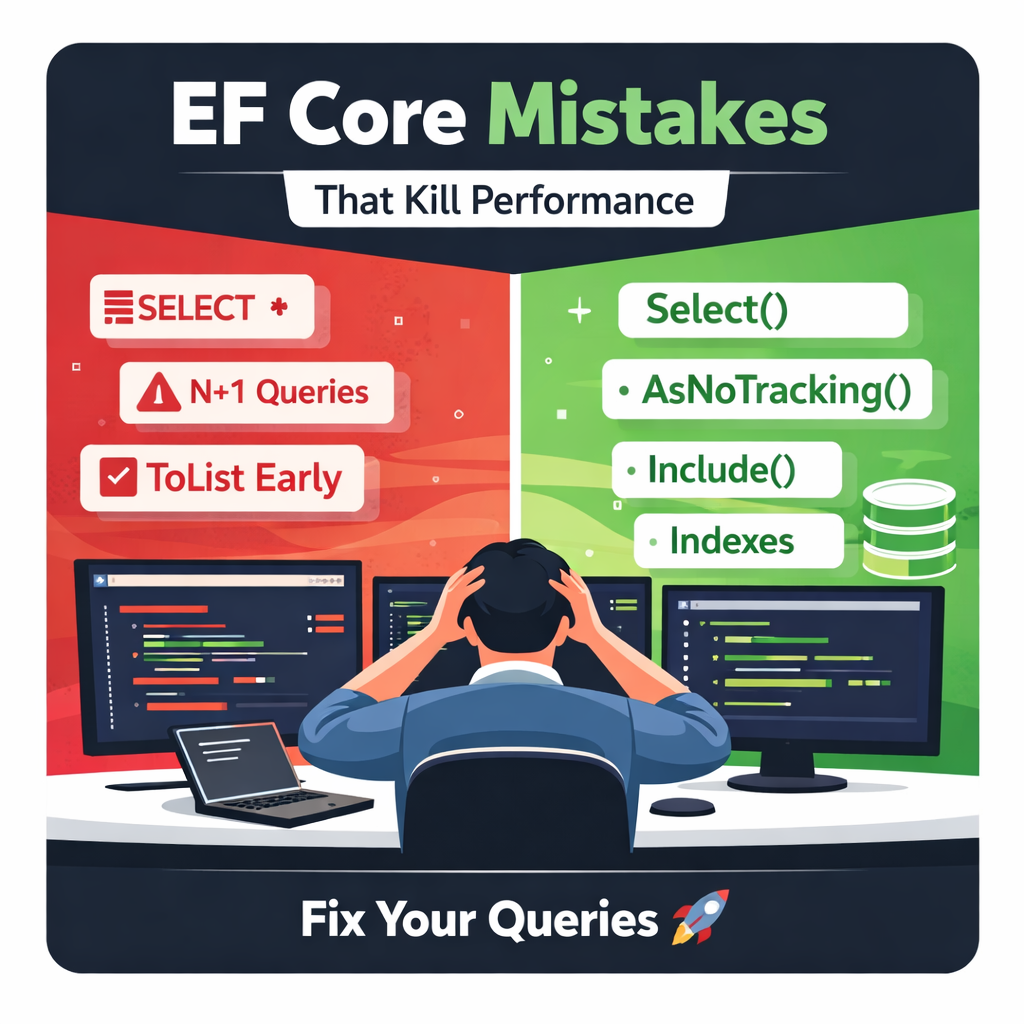
Introduction: From “Works” to “Scales” with EF Core
Entity Framework Core (EF Core) is an incredibly powerful and popular ORM for .NET applications, abstracting away much of the boilerplate SQL code. However, its ease of use often leads developers down a path where queries “work” but struggle immensely under real-world load. The difference between a functional query and a scalable query can be the difference between a responsive application and one plagued by timeouts and slow performance.
In this deep dive, we’ll expose eight common EF Core query mistakes that compromise performance and scalability. Understanding and addressing these anti-patterns will empower you to write more efficient, database-friendly code, leading to faster applications and happier users.
Core Explanation: Decoding Common EF Core Performance Traps
Let’s break down the most frequent missteps and how to correct them.
Mistake #1: Loading Entire Entities When You Only Need Two Fields
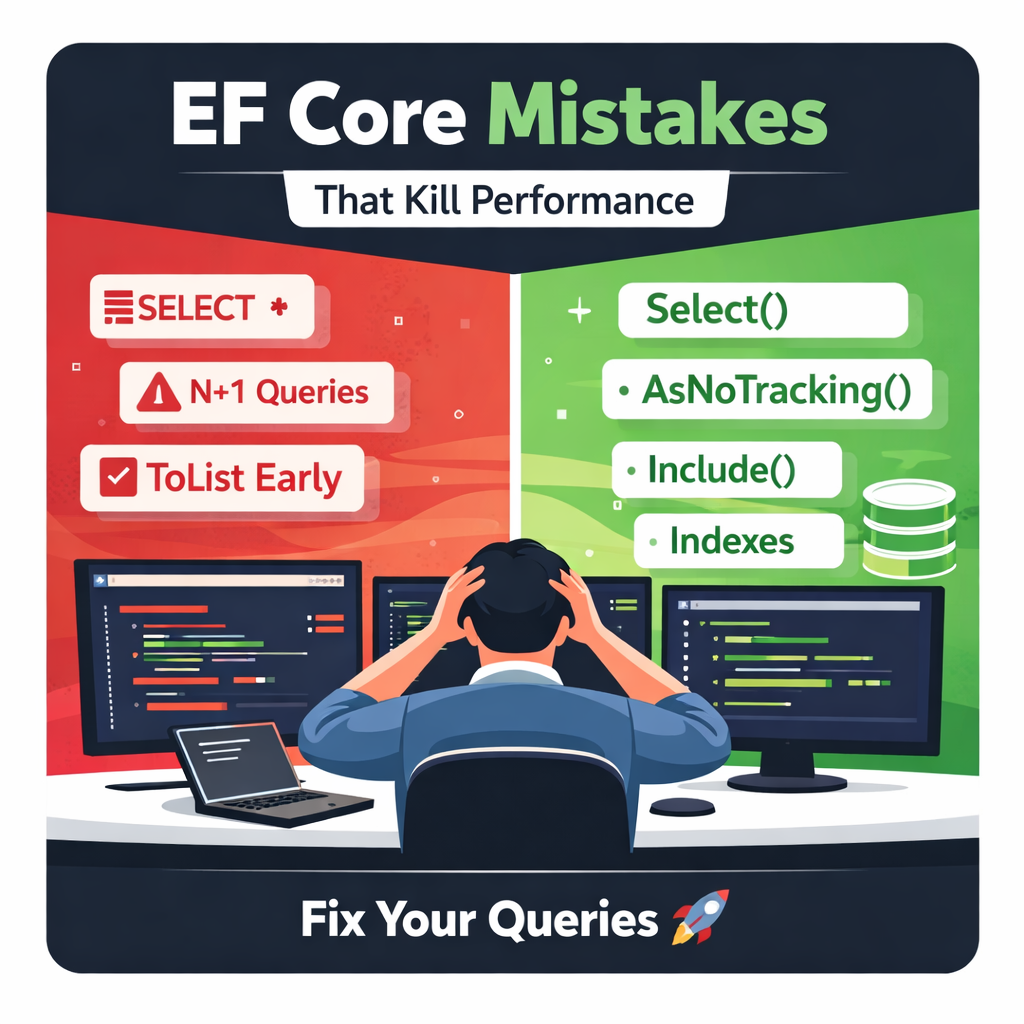
A prevalent habit is to select all columns (SELECT * in SQL terms) when you only need a subset of data. EF Core, by default, materializes complete entities. This means transferring unnecessary data from the database to your application, and then EF Core expends resources tracking changes on every loaded property, even if they’re not used.
The Fix: Use .Select() Projections
Instead of loading the entire entity, project your query result into an anonymous object or a DTO (Data Transfer Object) containing only the fields you require.
Here’s an example:
// BAD: Loads all user properties, tracks changes
var allUsers = await context.Users.ToListAsync();
foreach (var user in allUsers)
{
    Console.WriteLine($"Name: {user.Name}, Email: {user.Email}");
}
This approach is inefficient if you only needed the Name and Email.
Now, let’s see the optimized version:
// GOOD: Loads only Name and Email, no change tracking overhead for unused properties
var userContactInfo = await context.Users
    .Select(u => new { u.Name, u.Email })
    .ToListAsync();

foreach (var info in userContactInfo)
{
    Console.WriteLine($"Name: {info.Name}, Email: {info.Email}");
}
By using .Select(), you instruct EF Core to generate a SQL query that retrieves only the specified columns. The database sends less data, and EF Core doesn’t need to track properties it never received, leading to faster queries and reduced memory footprint.
Mistake #2: Tracking Everything (When You’re Just Reading)
EF Core’s change tracking mechanism is vital for updating, adding, and deleting entities. It monitors every loaded entity for modifications so it can persist those changes back to the database efficiently. However, this comes with a cost: memory usage and CPU cycles to maintain snapshots of the original entity state. If your query is purely for display or reporting purposes and no updates will be made, this overhead is entirely wasted.
The Fix: Add .AsNoTracking()
For read-only operations, simply instruct EF Core to disable change tracking.
// BAD: Reads products and tracks them, incurring unnecessary overhead
var productsToDisplay = await context.Products
    .Where(p => p.IsActive)
    .ToListAsync();
// (no updates intended for productsToDisplay)
Adding .AsNoTracking() is a trivial change with immediate benefits for read performance:
// GOOD: Reads products without tracking them, ideal for display purposes
var productsToDisplay = await context.Products
    .AsNoTracking()
    .Where(p => p.IsActive)
    .ToListAsync();
This single method call tells EF Core not to populate its change tracker with the retrieved entities, resulting in faster query execution and reduced memory consumption, especially for large datasets.
Mistake #3: N+1 Queries Hidden in Loops
This is a classic performance killer. An N+1 query problem occurs when you load a collection of “parent” entities, and then, inside a loop, you individually load “child” entities for each parent. If you have N parents, you end up executing N+1 database queries (1 for the parents, N for the children), rather than a single, optimized query.
Consider fetching a list of orders and then, for each order, fetching its items:
// BAD: N+1 problem - one query for orders, then one query for items PER order
var orders = await context.Orders.ToListAsync(); // 1st query
foreach (var order in orders)
{
    // N queries, one for each order's items
    await context.Entry(order).Collection(o => o.OrderItems).LoadAsync();
    Console.WriteLine($"Order {order.Id} has {order.OrderItems.Count} items.");
}
The Fix: Use .Include() for Eager Loading or Split Queries
EF Core provides mechanisms to load related data efficiently:
.Include(): Eagerly loads related entities in the same query..AsSplitQuery(): (Introduced in EF Core 5) Executes separate queries for includes, but EF Core still handles joining the results in memory. This can be better for very complex object graphs to avoid Cartesian products.
// GOOD: Eager loading with .Include() - fetches orders and their items in a single query
var ordersWithItems = await context.Orders
    .Include(o => o.OrderItems)
    .ToListAsync(); // Only 1 query

foreach (var order in ordersWithItems)
{
    Console.WriteLine($"Order {order.Id} has {order.OrderItems.Count} items.");
}
For more complex scenarios with multiple levels of related data, you can chain ThenInclude():
// GOOD: Eager loading with ThenInclude() - fetches orders, items, AND the product for each item
var ordersWithItemsAndProducts = await context.Orders
    .Include(o => o.OrderItems)
        .ThenInclude(oi => oi.Product)
    .ToListAsync(); // Still a single, though potentially larger, query
If the Include chain results in a massive query with many joins and a Cartesian product problem (where parent rows are duplicated for each child), AsSplitQuery() can be a better option:
// GOOD: AsSplitQuery() - executes separate queries for includes, EF Core joins in memory
var ordersWithItemsSplit = await context.Orders
    .Include(o => o.OrderItems)
    .AsSplitQuery() // Tells EF Core to generate multiple queries
    .ToListAsync();
Always understand what SQL EF Core is generating (see Mistake #8) to choose the best strategy.
Mistake #4: Calling ToList() Too Early
IQueryable<T> is a powerful abstraction that allows LINQ queries to be composed and translated into SQL. When you call methods like ToList(), ToArray(), First(), Single(), or Count(), the IQueryable is executed, and data is fetched from the database. Calling ToList() prematurely means fetching all data first, and then performing subsequent filtering, sorting, or pagination operations in memory within your application.
// BAD: Calls ToList() too early, brings all products into memory then filters
var allProducts = await context.Products.ToListAsync(); // Executes query, fetches ALL products
var expensiveProducts = allProducts.Where(p => p.Price > 100); // Filters in C# memory
var sortedExpensiveProducts = expensiveProducts.OrderBy(p => p.Name); // Sorts in C# memory
The Fix: Keep it as IQueryable Until the Last Possible Moment
Defer query execution to let the database do what it does best: efficiently filter, sort, and paginate large datasets.
// GOOD: Keeps as IQueryable, all filters and sorts are translated to SQL
var query = context.Products
    .Where(p => p.Price > 100) // Filter translated to SQL WHERE clause
    .OrderBy(p => p.Name);     // Sort translated to SQL ORDER BY clause

// Only executes the query here, fetching only the relevant, sorted data
var sortedExpensiveProducts = await query.ToListAsync();
This ensures that only the necessary data is transferred over the network and processed by your application, significantly reducing memory usage and improving performance.
Mistake #5: Missing Indexes
Databases rely heavily on indexes to quickly locate data without scanning entire tables. While EF Core automatically creates indexes for primary keys and foreign keys, it does not create them for other columns you frequently use in WHERE clauses, ORDER BY clauses, or JOIN conditions. Missing indexes can turn a lightning-fast query into a slow, full-table scan.
The Fix: Add .HasIndex() in OnModelCreating
You need to explicitly tell EF Core to create indexes for columns that are critical for query performance. This is typically done within your DbContext’s OnModelCreating method.
// Example DbContext
public class MyDbContext : DbContext
{
    public DbSet<Product> Products { get; set; }
    public DbSet<Order> Orders { get; set; }
    public DbSet<Customer> Customers { get; set; }

    protected override void OnModelCreating(ModelBuilder modelBuilder)
    {
        // Add an index on ProductName for faster searches
        modelBuilder.Entity<Product>()
            .HasIndex(p => p.ProductName);

        // Add a unique index for customer email to ensure uniqueness and speed up email-based lookups
        modelBuilder.Entity<Customer>()
            .HasIndex(c => c.Email)
            .IsUnique();

        // Index on OrderDate for fast date range queries
        modelBuilder.Entity<Order>()
            .HasIndex(o => o.OrderDate);

        base.OnModelCreating(modelBuilder);
    }
}
After adding indexes, remember to create a new migration (dotnet ef migrations add AddProductNameIndex) and update your database (dotnet ef database update). Regularly review your application’s query patterns and database query plans to identify missing indexes.
Mistake #6: Using a Single DbContext for Everything
While convenient for small applications, a “monolithic” DbContext with dozens of DbSet properties becomes a performance bottleneck in larger systems. When EF Core initializes a DbContext, it builds its internal model based on all entities it knows about. A giant model takes longer to build, consumes more memory, and can lead to less optimized query generation because EF Core’s query optimizer has a larger graph to traverse.
The Fix: Split by Bounded Context (Domain-Driven Design)
Embrace the principles of Domain-Driven Design (DDD) and create separate, specialized DbContexts for distinct “bounded contexts” within your application. For example, an e-commerce application might have:
SalesDbContext: For Orders, OrderItems, Customers (read/write intensive)CatalogDbContext: For Products, Categories, Suppliers (read-heavy)IdentityDbContext: For Users, Roles (specialized for identity management)
Each DbContext will have a smaller, more focused model, leading to:
- Faster startup/initialization: Less model building.
- Reduced memory footprint: Smaller model in memory.
- Clearer separation of concerns: Easier to manage and understand.
- Potentially better query optimization: EF Core works with a more targeted model.
This is more of an architectural pattern than a specific code fix, but it’s crucial for scaling.
Mistake #7: Ignoring Compiled Queries
By default, EF Core translates LINQ queries into SQL expressions every single time they are executed. While EF Core does some internal caching, for highly repetitive, performance-critical queries (hot paths), this translation overhead can accumulate.
The Fix: Use EF.CompileAsyncQuery()
EF Core provides a mechanism to compile queries once and reuse the compiled delegate for subsequent executions. This eliminates the LINQ-to-SQL translation cost on subsequent calls.
// Define the compiled query as a static field
private static readonly Func<MyDbContext, int, Task<Customer>> _getCustomerByIdCompiled =
    EF.CompileAsyncQuery((MyDbContext context, int customerId) =>
        context.Customers.FirstOrDefault(c => c.Id == customerId));

// Example of using the compiled query
public async Task<Customer> GetCustomerByIdCompiled(MyDbContext dbContext, int customerId)
{
    // The query is compiled once, and then this delegate is reused
    return await _getCustomerByIdCompiled(dbContext, customerId);
}
Compiled queries are more complex to set up and have limitations (e.g., they work best with simple, parameterized queries and don’t support dynamic .Include() calls easily). However, for critical, frequently executed queries, they can provide a measurable performance boost.
Mistake #8: Not Reading the Generated SQL
This is arguably the most fundamental mistake and the root cause of many performance issues. Developers often trust EF Core blindly, assuming it generates optimal SQL. While EF Core is smart, it’s not omniscient. Without inspecting the generated SQL, you’re flying blind, unaware of potential full table scans, excessive joins, or inefficient WHERE clauses.
The Fix: Call .ToQueryString() and Use Database Profilers
EF Core provides a simple method to inspect the SQL that will be executed:
// Define a LINQ query
var customersInRegion = context.Customers
    .Where(c => c.Region == "NorthEast")
    .OrderBy(c => c.LastName)
    .Take(10);

// Print the generated SQL to the console or log
Console.WriteLine(customersInRegion.ToQueryString());

// Now execute the query
var result = await customersInRegion.ToListAsync();
The output might look something like this:
SELECT TOP(10) [c].[Id], [c].[Email], [c].[FirstName], [c].[LastName], [c].[Region]
FROM [Customers] AS [c]
WHERE [c].[Region] = N'NorthEast'
ORDER BY [c].[c].[LastName]
Reading the SQL helps you:
- Identify unnecessary
SELECTcolumns (SELECT *when you usedSelect()). - Spot N+1 issues (multiple simple queries instead of one joined one).
- Uncover missing indexes (if a
WHEREorORDER BYclause doesn’t use an index). - Understand complex join strategies.
Beyond ToQueryString(), use database profiling tools (e.g., SQL Server Management Studio’s Activity Monitor, Postgres EXPLAIN ANALYZE) to analyze query execution plans, identify bottlenecks, and see where indexes would help.
Real-World Application and Business Value
Implementing these EF Core best practices offers tangible benefits for both developers and the business:
-
For Developers:
- Faster Development Cycles: Less time spent debugging slow queries or chasing elusive performance bugs.
- Cleaner Codebase: A better understanding of EF Core leads to more intentional and performant code.
- Reduced Frustration: Fewer user complaints about slow applications.
- Scalable Architecture: Building systems that can handle increased load without immediate re-architecting.
-
For Business:
- Improved User Experience: Faster page loads, quicker report generation, and responsive interactions lead to higher user satisfaction and retention.
- Reduced Infrastructure Costs: Efficient queries mean databases and application servers work less, requiring fewer resources (CPU, RAM, I/O), which translates directly to lower cloud hosting bills.
- Enhanced Competitiveness: A performant application can outperform rivals, especially in high-traffic or data-intensive scenarios.
- Greater Business Intelligence: Quicker data retrieval enables more timely and accurate reporting, supporting better decision-making.
- Increased System Stability: Optimized queries reduce the load on the database, preventing bottlenecks and crashes during peak demand.
Future Outlook and Best Practices
The landscape of EF Core is constantly evolving. Staying ahead means:
- Profiling and Monitoring: Integrate performance monitoring tools (e.g., Application Insights, MiniProfiler) into your development and production environments. Regularly profile your database queries to catch issues before they impact users.
- Stay Updated with EF Core Versions: Each EF Core release brings performance improvements, new features, and better query translation. For example, EF Core 5 introduced
AsSplitQuery(), and later versions continue to refine query optimization. - Database Awareness: While ORMs abstract SQL, a strong understanding of relational databases, indexing strategies, and SQL query optimization remains invaluable. Don’t let EF Core completely hide the database from you.
- Consider Read Models/CQRS: For highly complex or read-intensive scenarios, consider patterns like Command Query Responsibility Segregation (CQRS) where dedicated, optimized read models (potentially using raw SQL or Dapper) serve specific display needs, decoupling them from your write model.
- Use Interceptors: EF Core interceptors allow you to intercept, modify, or suppress EF Core operations. This can be powerful for custom logging, performance metrics, or even dynamic query modification.
By proactively addressing these common pitfalls and embracing a performance-first mindset, you can transform your EF Core applications from merely “working” to truly “scaling.”
Disclaimer: This blog post was generated with the assistance of AI to provide recent technical insights. While we strive for accuracy, please verify critical technical details before using them in production or for legal decisions.
AmethiSoft AI Team
Insights Team at AmethiSoft
AI Assistance Notice
This article was prepared with the assistance of Artificial Intelligence to provide timely and comprehensive technical insights. While our team reviews all content for relevance and accuracy, we recommend verifying critical technical details for your specific production environment. AmethiSoft is committed to transparency in AI usage.